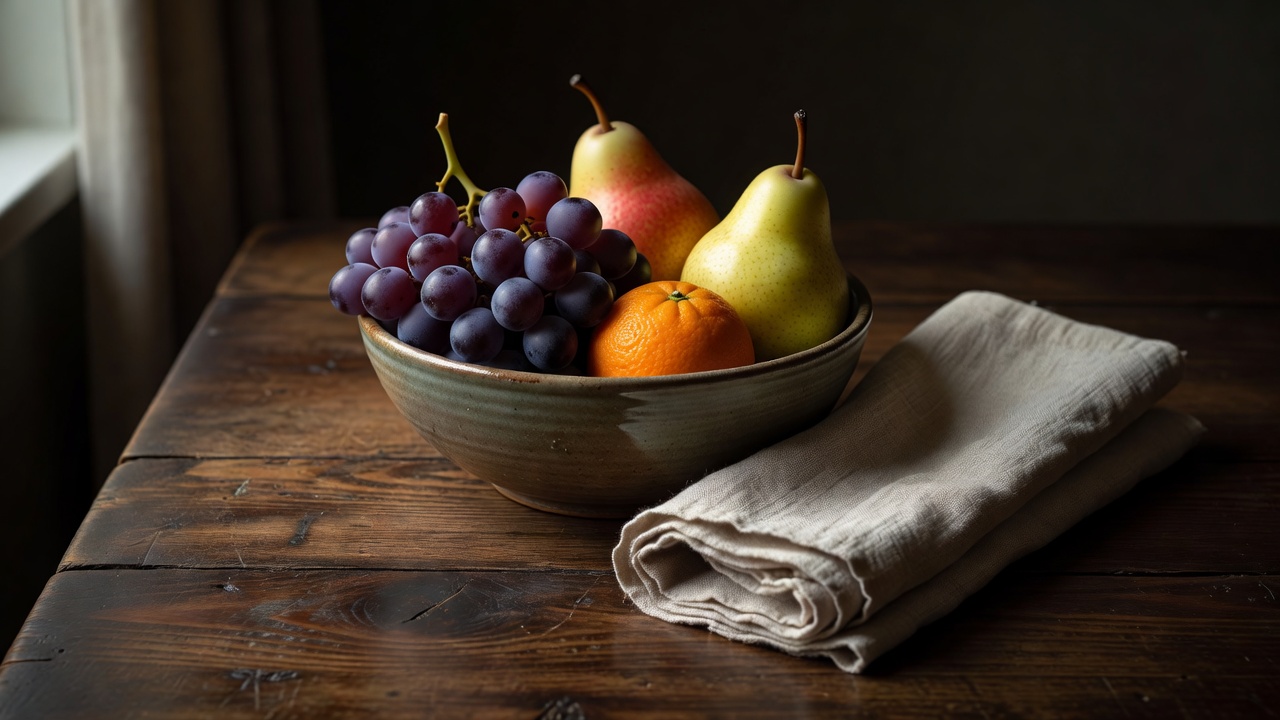
One shutter tap can mean several frames
A phone may capture information before and after your shutter tap, then combine selected frames into the saved image. Different exposures can preserve bright and dark areas; similar exposures can help reduce random noise. Alignment attempts to compensate for movement. The exact sequence depends on the device, mode, light level and software.
This explains why the photograph can change after you open it. The preview is designed to respond quickly, while the final result may receive additional processing. A face can become brighter, a sky more controlled or a texture more pronounced. Judge the saved file before deciding that your exposure setting failed.
Know the difference between useful detail and emphasis
Sharpening strengthens local edge contrast. It can make existing detail easier to see, but it does not reliably reconstruct information that was never recorded. Noise reduction can remove speckles while also smoothing fine texture. A phone balances these operations, sometimes treating faces, foliage and text differently.
Look at a tree against the sky, small lettering and a cheek in soft light. Bright halos around branches or brittle-looking skin may indicate stronger processing than you prefer. If your camera offers style or enhancement controls, compare restrained settings. Do not assume that a setting with the same name behaves identically on another model.
HDR is a tool, not a single look
High dynamic range techniques can retain more information across a contrasty scene. The final rendering determines whether that information looks subtle or exaggerated. A window-lit room can remain dimensional even when both the interior and the view outside are visible. It can also become unconvincingly flat if every shadow is raised.
HDR capture and HDR display are related but distinct. Some files carry brightness information that compatible screens and apps display differently. A picture can therefore look brighter in one gallery than in a messaging app. Compare in the destination where the photograph will actually be viewed before chasing a perfect appearance on only one screen.
Choose a file format for the work you want to do
JPEG is widely compatible. HEIF can store images efficiently, though compatibility depends on the receiving software. RAW formats generally preserve more capture data for later interpretation, but phone RAW may still include computational processing. Apple ProRAW and standard DNG files are not interchangeable promises of completely untouched sensor output.
Adobe Lightroom, Snapseed, Apple Photos and Google Photos are examples of editing tools, not requirements or endorsements. Feature availability changes. Start with the editor you already have, and move to a more complex workflow only when a specific limitation becomes important. Keep an original before experimenting with unfamiliar conversions.
| Format | Useful when | Watch for |
|---|---|---|
| JPEG | You want easy sharing and broad compatibility. | Repeated lossy exports can degrade detail. |
| HEIF | Your devices and recipients support it. | Some workflows require conversion. |
| RAW / DNG | You want more editing latitude. | Larger files and additional processing decisions. |
Use a small, repeatable editing order
First straighten and crop. Remove distractions at the edges without cutting away the context that makes the photograph meaningful. Next settle the overall exposure. Adjust highlights or shadows only where necessary, checking that a dark scene still feels dark and a white surface still has shape.
Then adjust white balance. Look for believable skin or a familiar neutral object, but remember that evening light is allowed to feel warm. Add a little contrast if the image needs separation. Make modest color changes last. Increasing saturation everywhere can make a pleasant subject compete with an unexpectedly loud background.
Inspect detail at a larger view, then return to normal size. Use sharpening and noise reduction sparingly because the phone may already have applied both. Compare with the original several times. A useful edit clarifies your intention; it does not need to announce how many sliders you touched.
A restrained adjustment study
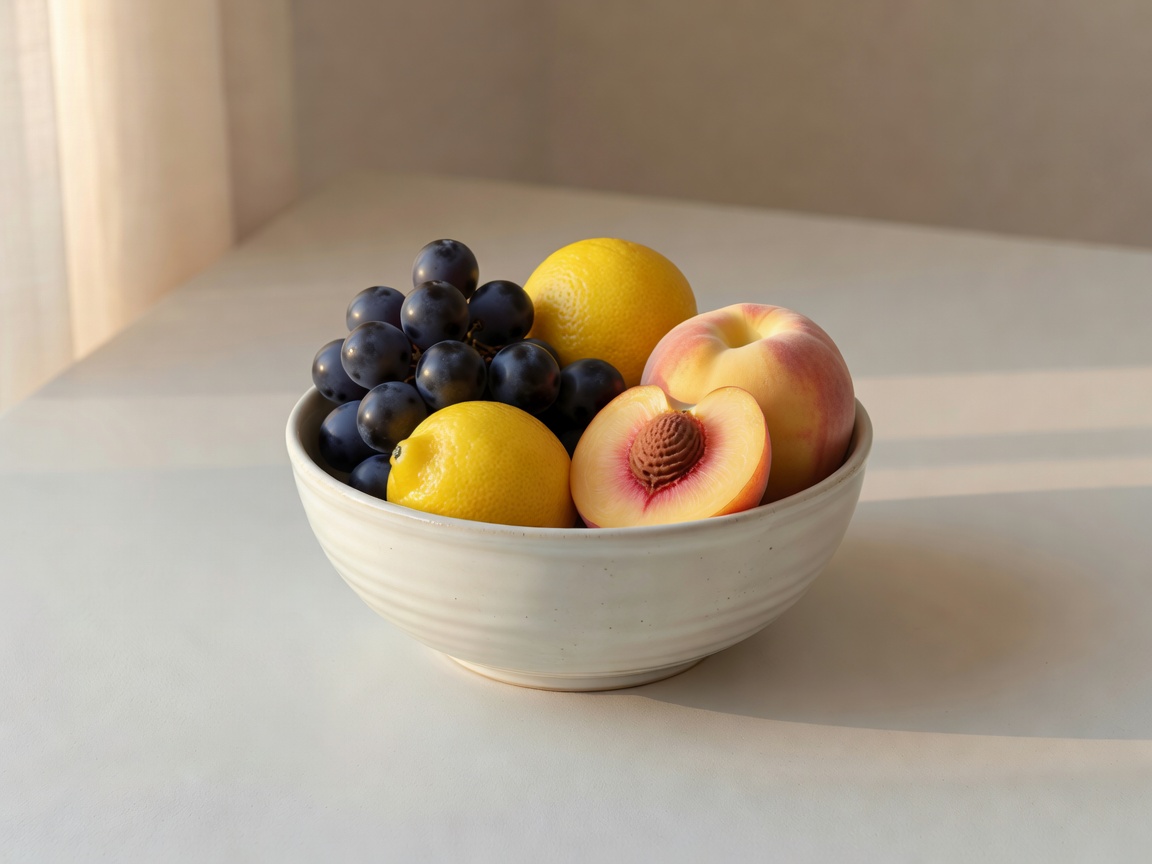
Export for a real destination
Save a full-resolution version when you want an archive, and use a copy for sharing. Check whether an app resizes images, strips metadata or changes color handling. The sRGB color space remains a practical compatibility choice for many ordinary web uses, though modern HDR and wide-gamut workflows may behave differently.
Before posting, inspect location metadata and visible private details. An attractive edit does not remove a street address from a reflection. Preserve an original, confirm that the exported version looks right, and stop when the photograph communicates clearly.